

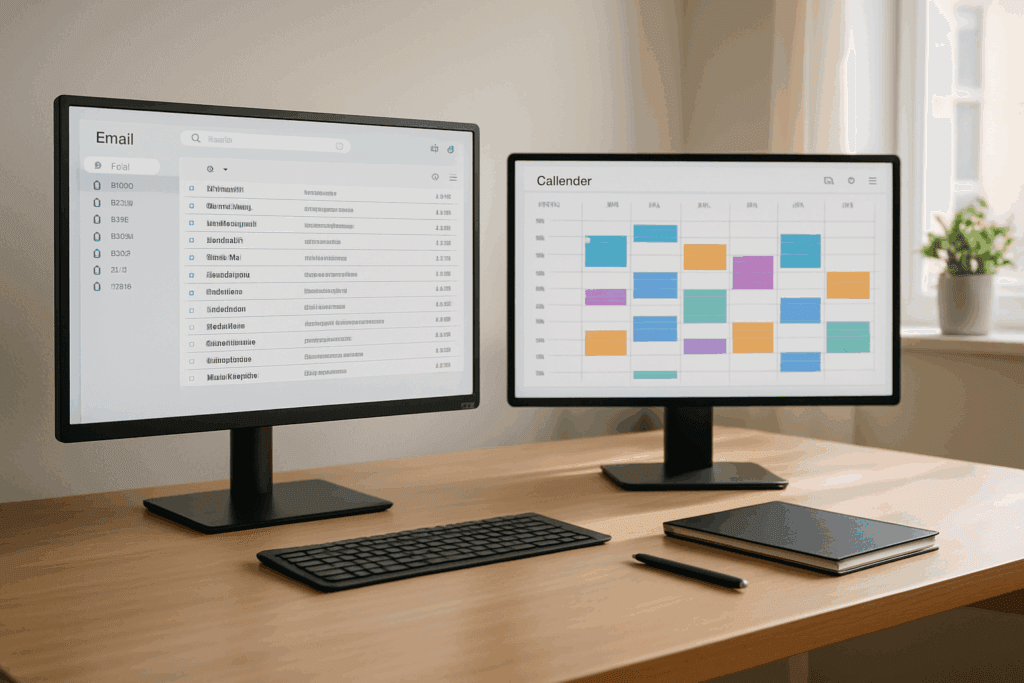
To organize your email inbox, set up a small number of folders, move routine mail out of the inbox automatically, check email at set times instead of all day, and make one decision about each message the first time you open it: reply, schedule, file, or delete. The steps below take about an hour to set up.
1. Start with a small set of folders
Three or four folders are enough for most businesses, for example Action, Waiting, Clients, and Receipts. Too many folders become their own filing job.
2. Clear the backlog in one pass
Move everything older than a set date into a single Archive folder. Nothing is deleted and everything is still searchable, and the inbox now shows only current mail.
3. Let rules handle routine mail
Newsletters, receipts, and automated notifications can skip the inbox and land in their own folder. Most mail programs call these rules or filters.
4. Check email at set times
Two or three planned sessions a day keep email from interrupting the rest of your work. Turn off new-mail alerts between sessions.
5. Decide once
When you open a message, reply if it takes a couple of minutes, put it on the calendar if it needs real time, file it if it is only for reference, and delete it if it is none of those.
What “inbox zero” means
Inbox zero does not mean an empty inbox at every moment. It means every message has had a decision made about it, so nothing in the inbox is waiting to be read a second time.
When to hand it off
If the system slips whenever the week gets busy, the sorting, flagging, and routine replies can be delegated. That is what the email management service at Diane’s Virtual Solutions does. For the case for delegating, see How Email Management Saves Time and Reduces Stress.